If the response is slow, refresh My candidates instead of creating a duplicate.
1. Choose the assignment, role, and profile
Role depends on Assignment: choose the assignment first, then its profession.
- In Assignment, select the active assignment you are sourcing for.
- In Role in this assignment, select the candidate's exact profession.
- In Public profile URL, paste a page that opens without authentication.
- Enter Name and Handle so the person can be found unambiguously.
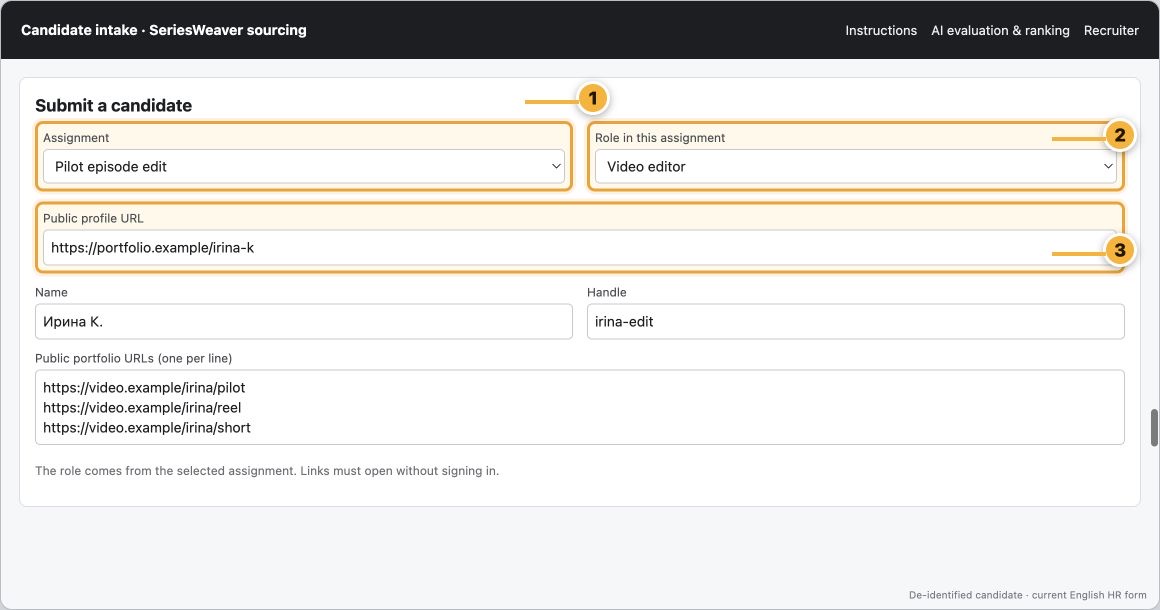
- Choose the active assignment.
- Choose the exact role from that assignment.
- Add the candidate's public profile.
2. Add the portfolio and known facts
Each link must lead to a specific public piece of the candidate's work.
- Paste links into Public portfolio URLs, one per line; for video, provide three representative projects when possible.
- Open Additional assessment data and add only known skills, seniority, location, and languages.
- Under Candidate-declared rate, enter the amount and currency separately and only when the candidate supplied them; this is declared, not approved pricing.
- Open every link in a normal browser window and confirm that no account login is required.
- Do not use private Kwork messages, temporary attachment links, ZIP files, or login-only pages.
- If the current screen has no Attach files control, provide public links; that is the normal mode for this deployment.
- Keep candidate skills and answers in the candidate's own wording and source language; do not translate or infer missing facts.
- Price units, service ranges, and case budgets come from the structured conversation record; managers see them under Commercial terms.
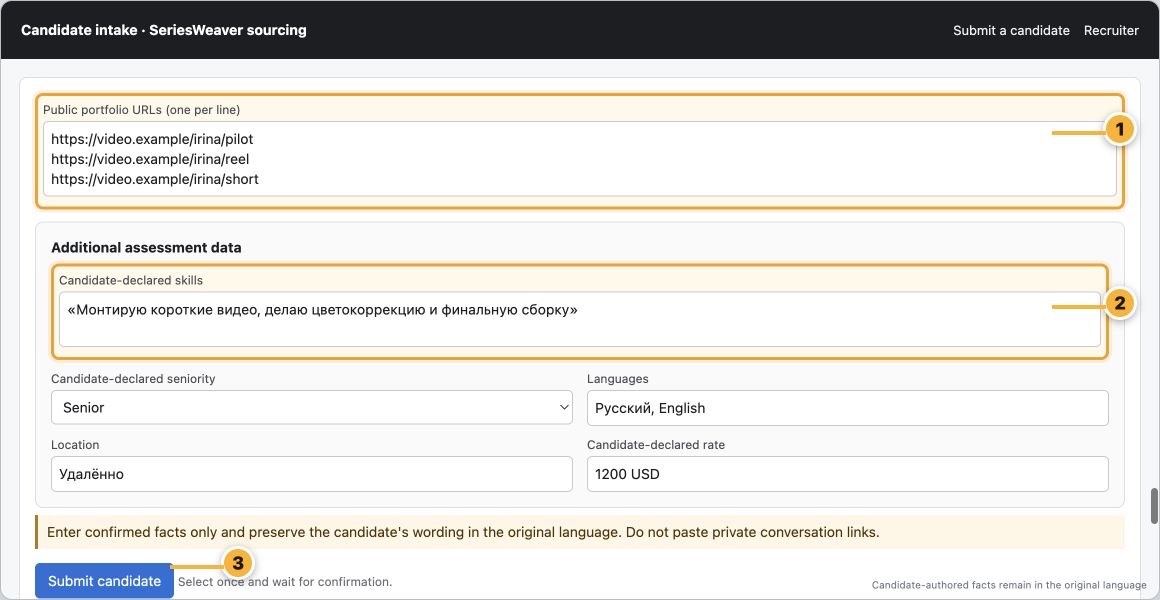
- Add representative work, each on a new line.
- Enter only confirmed additional facts.
- Select Submit candidate once and wait for confirmation.
3. Submit once and find the same card
After Submit candidate, do not create another record even if the screen responds slowly.
- Wait for a success message or a specific error.
- Open My candidates and select Refresh.
- Find the person by name, handle, or candidate_source_id.
- Use Status, Role, and Assignment instead of scanning the entire list.
Internal AI scores and manager staffing decisions are not shown in the HR portal.
4. Read the status and provide missing data
Review and What this means explain what is missing and what to do next.
- Accepted means the card was created; Processing means the submission is still being handled.
- Waiting for work samples means accessible work is missing.
- Needs changes means you should read What this means and collect the named facts or links.
- Review in progress means technical assessment is running; Review complete means it finished.
- Already registered means a possible duplicate was found; do not create another card.
If the existing card is not editable on this screen, send the manager the candidate_source_id, exact role, and new public URLs through the agreed work channel.
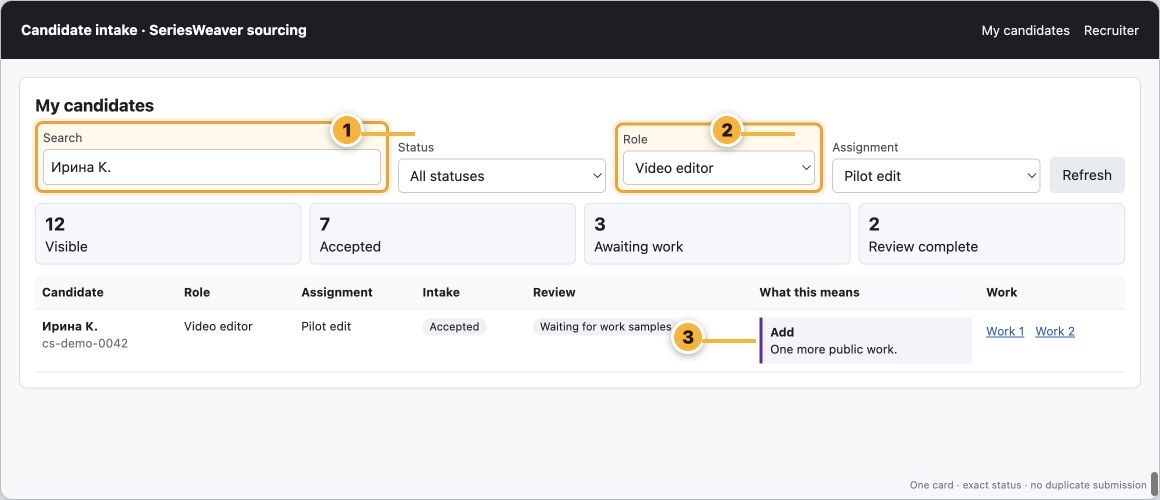
- Find the existing card through Search.
- Keep only the intended profession through Role.
- Read What this means and Requested work without guessing.
Reference: what happens after submission
- Candidate intake creates a candidate_source_id; the separate complete-contact catalog uses Lead IDs. Do not guess a mapping between them.
- A submission does not enter AI ranking automatically; it must pass completeness and binding checks.
- Video and extracted frames used by linked-video processing are temporary and deleted after analysis.
Before submission
- An active Assignment and exact Role are selected.
- The public profile opens without authentication.
- The portfolio contains accessible representative work.
- Skills, languages, location, and rate are entered without guesses.
- My candidates contains no existing card for the same person.